
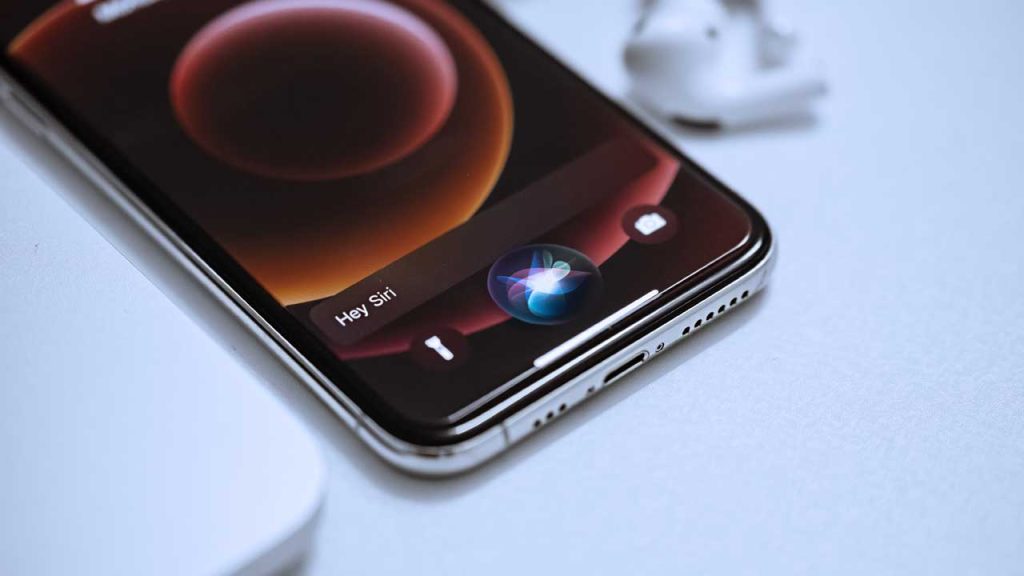
Short answer: partly. An iPhone can pick up calls hands-free, and since iOS 26 Siri can screen unknown callers by asking who they are and why they are calling before your phone rings. What Siri cannot do is have a real conversation for you. It will not take a detailed message, book an appointment or help a customer. That gap is why businesses still use a live virtual receptionist.
Quick answer: what Siri and iPhone can do with calls
- Auto-Answer: the iPhone picks up incoming calls on its own after a delay you choose.
- Announce Calls: Siri tells you who is calling and you say “answer” or “decline”.
- Call Screening (iOS 26+): Siri answers calls from unsaved numbers, asks the caller for their name and reason, and shows it on your screen.
- Live Voicemail: you see a live transcript while the caller leaves a message and can pick up mid-message.
- Hang up by voice: you can ask Siri to end a call once Call Hang Up is turned on in Siri settings.
- Not possible: Siri cannot talk to callers on your behalf, answer their questions, take orders or book appointments.
How to make your iPhone answer calls automatically
Auto-Answer is an accessibility feature that has been on the iPhone for years. It answers every incoming call after a set number of seconds, which is useful when your hands are busy.
- Open Settings and tap Accessibility.
- Tap Touch, then Call Audio Routing.
- Tap Auto-Answer Calls, turn it on and set the delay.
Keep in mind that Auto-Answer only connects the caller to you. If you are not there to speak, the caller hears silence.
How to answer calls with your voice using Siri
Turn on Announce Calls in your iPhone’s Phone or Siri settings. You can choose to have calls announced always, only with headphones and in the car, or only with headphones. When Siri announces a caller, say “answer” to pick up or “decline” to send the call to voicemail. This works best with AirPods, other compatible headphones and CarPlay.
Call Screening: Siri asks unknown callers why they are calling
Call Screening arrived with iOS 26. When it is on, calls from numbers that are not in your contacts are answered silently in the background. Siri asks the caller for their name and the reason for the call, then your iPhone rings and shows that information so you can decide whether to pick up or send the call to voicemail.
- Open Settings, tap Apps, then Phone.
- Scroll to Screen Unknown Callers.
- Choose Ask Reason for Calling. The other choices are Silence (unknown calls go straight to voicemail) and Never (screening off).
For a personal phone this cuts down on spam. For a business, it adds a step between a new customer and a real answer, and some callers hang up when a machine asks them to explain themselves.
Live Voicemail and Hold Assist
Live Voicemail shows a real-time transcript on your screen while a caller leaves a voicemail, and you can pick up before they finish. Hold Assist, added in iOS 26, detects when you have been put on hold, lets you step away and alerts you when a person comes back on the line. Both help you handle your own calls; neither answers callers for you.
What Siri still cannot do on a phone call
- Hold a natural conversation or answer a caller’s questions about your business.
- Take a complete message with name, number, reason and urgency.
- Book, confirm or reschedule appointments.
- Qualify a new lead or take an order.
- Transfer an urgent call to the right person on your team.
- Cover calls when your phone is off, out of battery or already on another call.
Siri works only on your own device, for your own calls. That is fine for personal use, but a business number needs every caller answered, every time.
When a live receptionist is the better option
If missed calls cost you customers, a human answering service fills the gap Siri leaves. At Grasp Solutions, trained receptionists answer your calls in your business name, take full messages, schedule appointments and transfer urgent calls, so callers always reach a real person.
- Virtual receptionist services for day-to-day call answering.
- After-hours answering service for nights, weekends and holidays.
- Overflow call handling for when every line is busy.
- Call answering service for small businesses that want every call picked up.
Grasp has supported US businesses since 2015 with 24/7 coverage and no long-term contracts. Talk to our team to see how it would work for your calls.
Frequently asked questions
Can Siri answer the phone for me?
Partly. With Auto-Answer turned on, your iPhone picks up calls by itself, and with Call Screening (iOS 26 and later) Siri answers calls from unsaved numbers to ask who is calling and why. Siri does not hold a conversation with the caller on your behalf.
How do I make my iPhone answer calls automatically?
Go to Settings, Accessibility, Touch, Call Audio Routing, Auto-Answer Calls, turn it on and choose how many seconds the phone rings first. The call connects to you; you still do the talking.
Can I answer a call by voice on iPhone?
Yes. Turn on Announce Calls in your Phone or Siri settings. When Siri announces a caller, say “answer” or “decline”. It works best with AirPods, compatible headphones and CarPlay.
Can Siri take a message from a caller?
Not in a conversation. Live Voicemail shows a real-time transcript while a caller leaves a voicemail, and Call Screening shows the reason for the call, but neither can ask follow-up questions, take an order or book an appointment.
What is the best way for a business to stop missing calls?
Use a live answering service. A trained receptionist answers in your business name, takes complete messages, books appointments and transfers urgent calls, 24 hours a day, including after hours and when every line is busy.